Batch, a design for every row of a list
Make a design once in the Studio and create a version for every row of a database: a post per product, a certificate per student. Plus a new column to add photos to your databases.
New
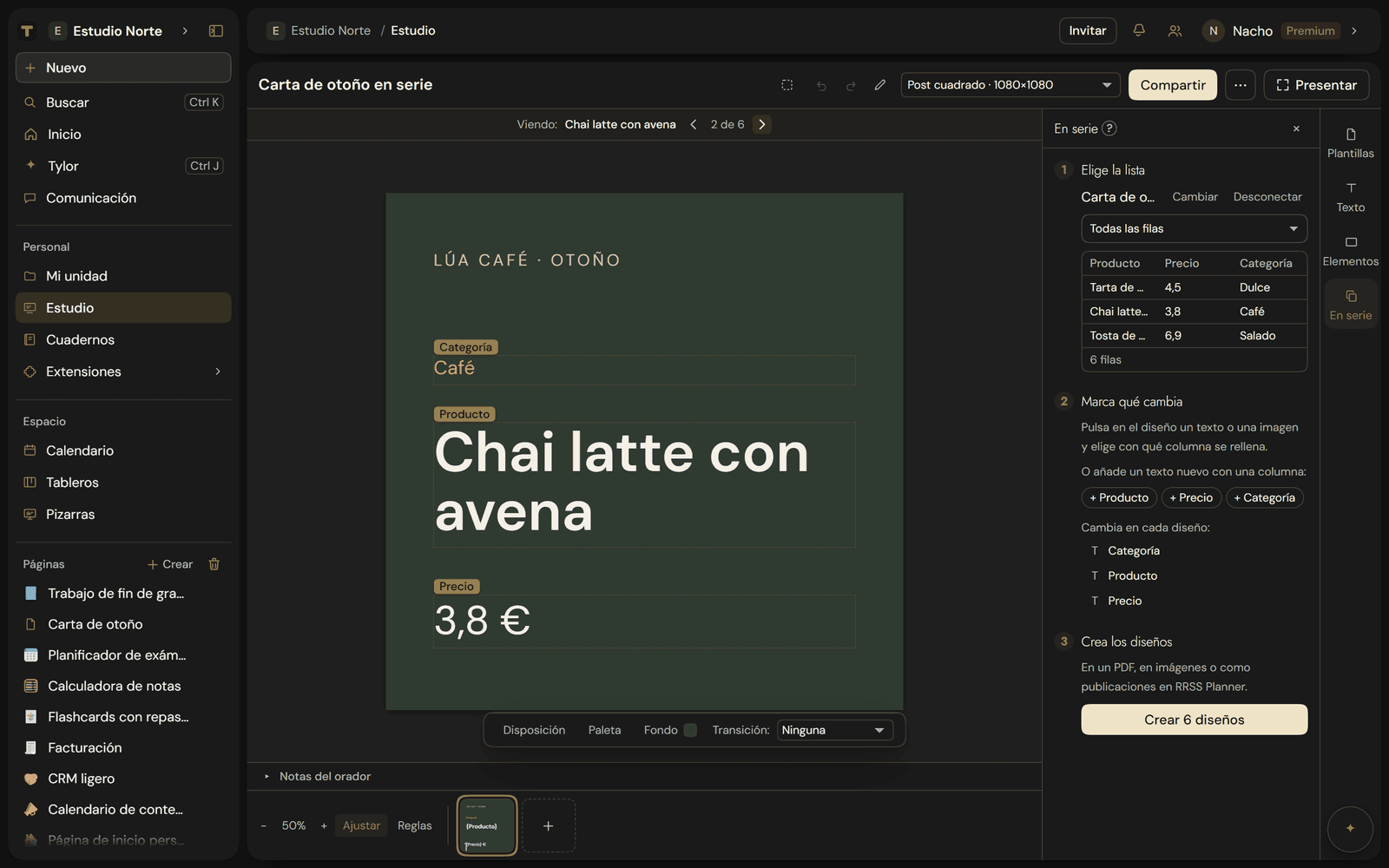
- Batch. In the Studio, click Batch in the right-hand bar and follow three steps: pick the list (a database from your pages), click the text or image that changes and choose which column fills it, and create all the designs at once: as a PDF, as images or as posts in RRSS Planner. While you set it up, the design shows real data and you move between rows with ‹ and ›. The ? next to the title explains it in one sentence. See Batch.
- Start from the list. In the header of any database, click Batch, choose the format (a post, a story, a certificate…) and the Studio opens with a design already connected that shows your data.
- Image column. Databases have a new column type, Image: one photo per row, uploaded from the cell. Batch uses it to put each row's photo in its design. See Image.