
Getting started
Navigating Tylode
On a computer, Tylode has one layout everywhere: a sidebar on the left, a thin top bar that tells you where you are, and your content in the middle. On a phone, a tab bar at the bottom puts the things you use all the time within reach of your thumb. This page walks through every part so you always know where to find things.
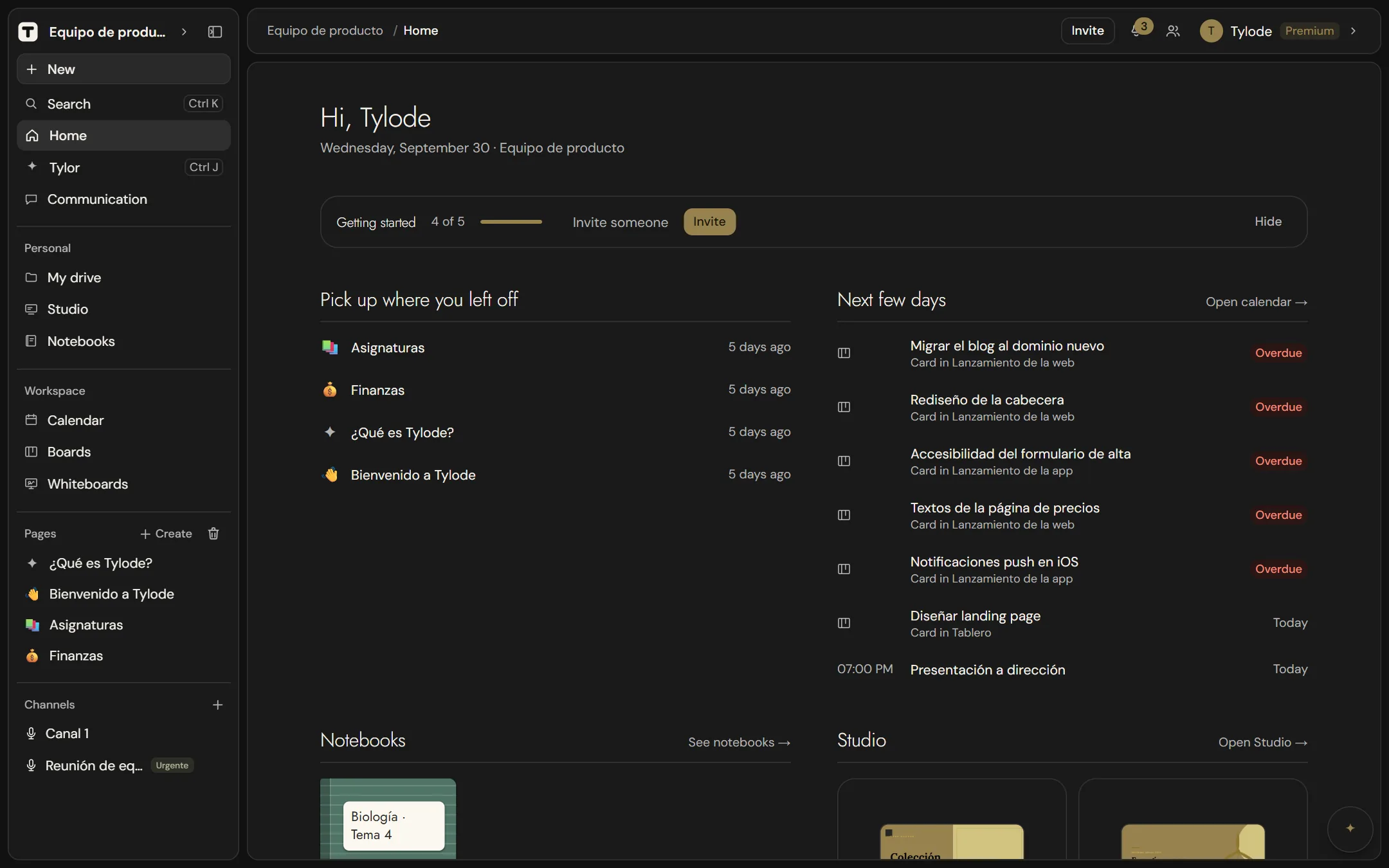
The sidebar
The sidebar holds everything you can open, from top to bottom:
- The header: the Tylode symbol, the name of the current workspace (click it to switch workspace or open Members) and Hide sidebar.
- The top: New, Search, Home, Tylor and Communication, the things you reach for all day.
- Favorites: the pages you've marked as favorites, if you have any.
- Personal: what belongs only to you.
- Workspace: what you share with the workspace.
- Pages: the page tree.
- Channels: voice channels.
- The footer: your plan (during the Pro trial or on Free) and the voice bar.
A thin line separates each section from the one above. Section headings are small plain text. Click one to fold or unfold its section; Tylode remembers on each device which ones you folded.
Change the order
You can put the sections, and what's inside them, in whatever order you like:
- A whole section: press and hold its heading (for example Channels) and drag it up or down.
- An item in Personal or Workspace: press and hold it and drag it within its section.
You need to hold for a moment before moving (the item sinks slightly while you hold and lifts once you've picked it up): that way a normal click still opens what you click, and on a phone swiping still scrolls the list. The order is saved to your account, so it's the same on your computer, tablet and phone.
The top
The first rows have no heading:
| Item | What it does |
|---|---|
| New | A menu with everything you can create: Page, From template, Board, Whiteboard, Event, Design, Notebook and Import…. See Create from New. |
| Search | Opens global search. It shows the shortcut Ctrl+K (Cmd+K on Mac), which works anywhere. See Search. |
| Home | Your starting point: what's coming up and what you were working on. See Home. |
| Tylor | The AI assistant, with your conversations. It shows its shortcut, Ctrl+J (Cmd+J on Mac), which opens it from any screen. See AI assistant. |
| Communication | Your mail and your chats in one place. Inside, above the list, the Mail and Chats tabs, each with its unread count, take you from one to the other. The number next to it adds up unread mail and chats. See Mail and Chats. |
Create from New
New, highlighted at the very top, gathers everything you can create in one menu, so you don't have to go to its section first:
- Page: creates a new page and opens it.
- From template: opens the template gallery.
- Board and Whiteboard: create a new one and open it.
- Event: opens the Calendar with the event editor already open.
- Design: opens Studio so you can choose what to design.
- Notebook: creates a notebook.
- Import…: opens the importer (Markdown, Notion, CSV, PDF and Trello).
On a phone, the same options are behind the + button in the bottom tab bar.
Personal
Things that belong only to you and go with you to every workspace.
| Item | What it is |
|---|---|
| My drive | Your files and folders. See My drive. |
| Studio | Presentations, documents, social posts and print designs. See Studio. |
| Notebooks | Handwritten notes and drawings, with a stylus, finger or mouse. See Notebooks. |
| Extensions | A drop-down with the extensions you've installed, such as Notes. It only appears if you have any. |
Your personal calendar doesn't have its own row: it's a layer of the Calendar, in a different color. See Calendar.
Workspace
What you share with the members of the current workspace.
| Item | What it is |
|---|---|
| Calendar | The workspace calendar, with your personal events on top in a different color. See Calendar. |
| Boards | Lists and cards. See Boards. |
| Whiteboards | Infinite canvases. See Whiteboards. |
Pages
The workspace's page tree. In its heading:
- Create: choose Page to create a new page and open it, or From template to open the template gallery.
- Trash: what you've deleted. See Trash.
In the tree:
- If a page has subpages, hovering turns its icon into the arrow that expands it. Click the arrow to expand or collapse it. On touch screens the arrow is always visible.
- Double-click a title to rename it.
- Press and hold a page and drag it to reorder it.
- Use each page's ⋯ menu to create a subpage, rename it, move it up or down, or move it to the trash.
See Organize pages.
Channels
The workspace's voice channels. Click a channel to join it, or click + (New voice channel) next to the heading to create one (if your role allows it). Each channel has an options menu to leave it, require approval to join or delete it. See Voice channels.
Footer
The bottom of the sidebar always stays in view. During your Pro trial it shows Pro · N days left, and on Free Upgrade to Pro; both go to Billing. Below that, the voice bar while you're in a voice channel (mute, camera, screen sharing, leave).
Switch workspace
The name of the current workspace sits at the top of the sidebar, next to the Tylode symbol. Click it to open the workspace switcher:
- Your workspaces: click one to switch to it. Frozen workspaces are marked ❄️ Frozen.
- Pending invitations: accept or decline invitations to other workspaces. A red dot on the workspace name tells you there's one waiting.
- Members: who is in the current workspace. From there, owners and admins invite people and manage the team. See Members, roles and teams.
- Create workspace: give it a name and click Create. If you've reached your plan's workspace limit, you'll see a message with a link to the plans instead.
See Workspaces.
Hide and show the sidebar
Click Hide sidebar, the button at the right of the sidebar header, to give your content the full width. The sidebar folds into a thin rail; click Show sidebar on that rail to bring it back.
The top bar
The top bar tells you where you are and who you are.
On the left, the breadcrumbs. They start with the workspace name, followed by the section you're in (for example, Boards) or, on a page, the chain of parent pages down to the one you have open. Click any earlier part to go back up: the workspace name takes you to Home, and a parent page opens that page.
On the right:
| Element | What it does |
|---|---|
| Invite | Two options: To this workspace (takes you to Members to invite someone) and Your friend link (the link that gives you a month of Pro for every three friends who pay). See Members and Invite your friends. On a phone, both options are in your account menu. |
| Activity (the bell) | What needs your attention. The number adds up pending invitations, unread notifications and unread mail. It opens a panel with Pending invitations to other workspaces (accept or decline them right there), For you (mentions, replies, cards assigned to you and pages shared with you) and Mail. See Notifications. On a phone it's in the Home header. |
| Friends | How many friends are online, pending requests and See all. See Friends. |
| User menu (your photo or initial, your name and your plan: Free, Pro or Premium) | Edit profile, Settings, Marketplace, Help & docs (opens this documentation in a new tab), Take the tour (a quick walk through the sidebar) and Sign out. Signing out only affects this device. |
Settings
Open Settings from the user menu. Related sections are grouped: click Workspace, API and webhooks, Billing or Privacy and security to expand them. Settings is a page of its own: to leave, click ← Back at the top (on a phone, the header's back arrow) or press Esc, and you return to where you were before. Each section has its own address, so you can share a link to it.
| Section | What you'll find | Covered in |
|---|---|---|
| General | Appearance (Light, Dark, System), your accent color and the interface language. | Your account |
| Account | Your photo, name and email. | Your account |
| Integrations | Connect your Google account to sync Google Calendar. | Integrations |
| Extensions | Tylode extensions, like Notes: just for you, installed with one click. | Notes |
| Workspace → Workspace details | Workspace name and color, slug, plan, Workspace ID and trash retention. | Workspaces |
| Workspace → Members and permissions | Invitations, members, roles, custom roles, teams and the Free-account allowance. | Members, roles and teams |
| Workspace → Plugins | The workspace's plugins: install, open, pin and uninstall them. | Plugins |
| Workspace → Brand kit | Your logo, colors and fonts for Studio. | Studio |
| Workspace → Audit log | A record of sensitive actions, such as deleted pages and role changes. | Security |
| API and webhooks → API and plugins | Personal access tokens, OAuth applications and connected apps. | Authentication |
| API and webhooks → Webhooks | Notify your own server or Slack when things happen. | Webhooks |
| Billing → Plan and payments | Your plan, upgrades, downgrades and the subscription portal. | Manage your subscription |
| Billing → Invite friends | Your link for inviting friends and the months of Pro you've earned. | Invite your friends |
| Privacy and security → Privacy | How your online status appears to friends. | Friends |
| Privacy and security → Security | Password, open sessions and two-step verification. | Security |
Some sections only show their content to owners and admins, or on certain plans. When a feature isn't in your plan, the section says which plan includes it and links to See plans.
The assistant button
On a computer, a small round button with a spark (✦) floats in the bottom-right corner of every screen. Click it, click Tylor in the sidebar, or press Ctrl+J (Cmd+J on Mac), to ask the AI assistant to create a page, a calendar event or a card, or to summarise a page. The same shortcut closes it. Drag the button to move it out of the way. See AI assistant.
On a phone or small screen
On screens narrower than 768 pixels, Tylode switches to a layout built for your thumb. On a computer everything stays as described above.
The bottom tab bar
A bar with five tabs always floats at the bottom of the screen, clear of the edges. It's translucent: whatever scrolls underneath still shows through, blurred.
| Tab | What it does |
|---|---|
| Home | Takes you to Home, with the Search or ask Tylor field at the top. |
| Workspace | Everything in the workspace on one screen: your sections, favorites and pages (see The Workspace tab). |
| + | Opens the What do you want to create? sheet, with quick capture at the top (see Create from the + button). |
| Messages | Your messages, with the Mail, Chats and Channels tabs (voice channels, with the active call at the top). Its number adds up unread mail and chats. |
| Calendar | The Calendar, which opens in the Agenda on a phone. |
Search, Activity and the sidebar are no longer tabs: search is at the top of Home and Workspace, the bell is in the Home header and the full sidebar is at the bottom of Workspace.
The header on a phone
It takes a single line. On the tab screens it shows the Tylode symbol (tap it to go to Home); anywhere else, a back arrow. Next to it, where you are.
The bell (Activity) and your account only appear on Home. Besides the usual items, your account menu has Invite to this workspace, Your friend link and Friends, which on a computer are in the top bar.
The Workspace tab
Workspace gathers what's in the sidebar on a computer:
- Your things: large tiles for Boards, Whiteboards, Notebooks, Studio, My drive and any extensions you've installed.
- Favorites, if you've marked any pages.
- Pages, one level at a time: tap a page to open it, or the arrow on its right to see its subpages. At the top, a link takes you back up a level. New page creates one and opens it.
- More: Members, Templates, Trash, Settings and Show the full sidebar, which opens the sidebar as a drawer that slides over the content.
Search and ask Tylor
At the top of Home and Workspace there's a Search or ask Tylor field. Tap it to open search and type at least two letters. As well as the results, search offers Ask Tylor: “…”, which opens Tylor with what you typed already filled in, without sending it yet.
There's no floating Tylor button on a phone: get to it from that field or from + → Assistant.
Create from the + button
The + tab opens a sheet from the bottom. At the top is quick capture, for jotting something down without leaving where you are: type it, choose what it is and save it.
- Note: saved as a new page with that title.
- Task: a card in the first list of the board you choose. Tylode remembers the board on that device for next time.
- Event: an event in the workspace calendar. If you type a date and time, it understands them (in Spanish, for example “mañana a las 17:00 dentista”) and shows you how it will look before saving. With no date, it's saved for today as an all-day event, and you change the time later in the calendar.
Below are the same options as New (Page, From template, Board, Whiteboard, Event, Design, Notebook and Import…), plus Assistant, which opens Tylor.
Menus and buttons on a phone
- ⋯ menus and the + open as sheets from the bottom. To close one, swipe it down or tap outside it.
- Share, in the header of pages, boards and whiteboards, is an icon instead of the button with text.
- Whiteboards, Studio and notebooks open for viewing. Edit unlocks the full editor and Done takes you back to viewing.
- The calendar fits on one row: ‹, ›, the date and ⋯. Everything else is in the ⋯ sheet, and New event is in the +.