
Getting started
Tylode Calendar
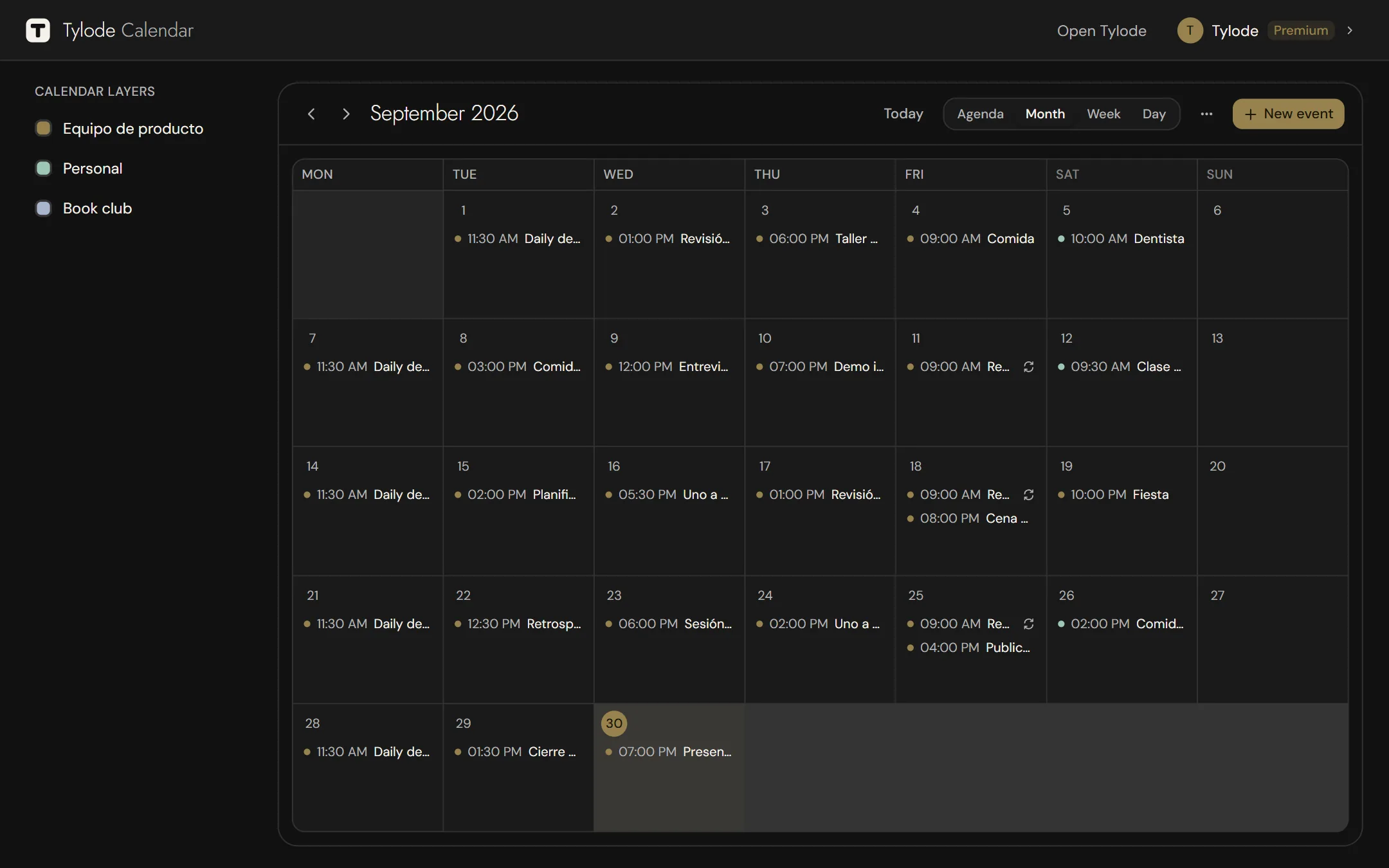
Tylode Calendar is Tylode's calendar on its own, without the rest of the app, so you always have it to hand. It's free on every plan and uses the same account and the same data: an event you create in one shows up in the other.
It works in the browser and as a Windows and Mac app.
What it has
- All your layers at once. Your personal calendar and the calendar of every workspace you're a member of, each in its own color. In Tylode you see the current workspace's calendar and yours; here, all of them together.
- Calendar layers. On wide screens, a panel on the left with a checkbox for each layer to show or hide it. On a phone, the layers are in the ⋯ menu. Tylode Calendar remembers in that browser which layers you've hidden.
- A new event goes to the layer you choose. When you create it, under Where it goes, pick a workspace or Personal; the layers you have visible come first. On a phone, New event is a floating button at the bottom right.
- A heads-up 10 minutes before every timed event, such as "Starts in 10 min · 5:00 PM". All-day events don't send one. Click the notification to open the calendar. See Notifications.
- Open Tylode, at the top. In the desktop app it opens the Tylode app if you have it installed, or Tylode in the browser if not. In the browser it takes you to Tylode.
Everything else works like Tylode's Calendar: the Agenda, Month, Week and Day views, recurring events, participants, Availability and subscribing from other calendar apps.
In the browser
Open app.tylode.com/calendario. If you're not signed in, it asks you to sign in and then brings you back to the calendar.
On Windows
- Download the installer from the downloads page, on the Tylode Calendar card. The file is called Tylode-Calendar-Setup.
- Open it. It installs without questions and without administrator permissions. If you already have the Tylode app, it installs alongside it: they're two separate apps and don't get in each other's way.
- Sign in with your Tylode account.
If Windows says "Windows protected your PC", it's because the Windows app isn't digitally signed yet. Click More info and then Run anyway. It only happens when you install it.
On Mac
You need a Mac with Apple silicon and macOS 13 or later.
- On the downloads page, on the Tylode Calendar card, click For Mac. A
.dmgfile downloads. - Open it and drag Tylode Calendar to the Applications folder. If you already have the Tylode app, you keep both: they're separate apps and don't get in each other's way.
- Open it and sign in with your Tylode account.
It's signed and notarized by Apple, so it opens without the "unidentified developer" warning.
On the desktop
The Windows and Mac apps update themselves.
If you sign in with Google, clicking Continue with Google opens your browser, because Google doesn't allow signing in inside other apps. Sign in there as usual and, when you're done, the browser will ask for permission to open Tylode Calendar; accept and the app opens with your session.
Notifications
Every minute, Tylode Calendar checks your layers for timed events starting soon and lets you know when there are 10 minutes or less to go. Each event notifies you only once.
- In the Windows or Mac app, the heads-up is a system notification and arrives even if you've closed the window: the app stays in the system tray (on a Mac, in the menu bar).
- In the browser, it only notifies you if you've already allowed notifications for Tylode, and while the tab is open. Tylode Calendar doesn't ask for permission.
If your account is new
If you sign up from Tylode Calendar, you first accept the Terms and go through Tylode's welcome. Then you come back to the calendar.
Phone
There's no Tylode Calendar for phones yet. In the meantime you can use it in the browser, which adapts to a phone's screen.