
Getting started
Search
Global search finds pages, boards, whiteboards, presentations, mail and chat messages from one box. It's the fastest way to jump anywhere in your workspace without touching the sidebar.
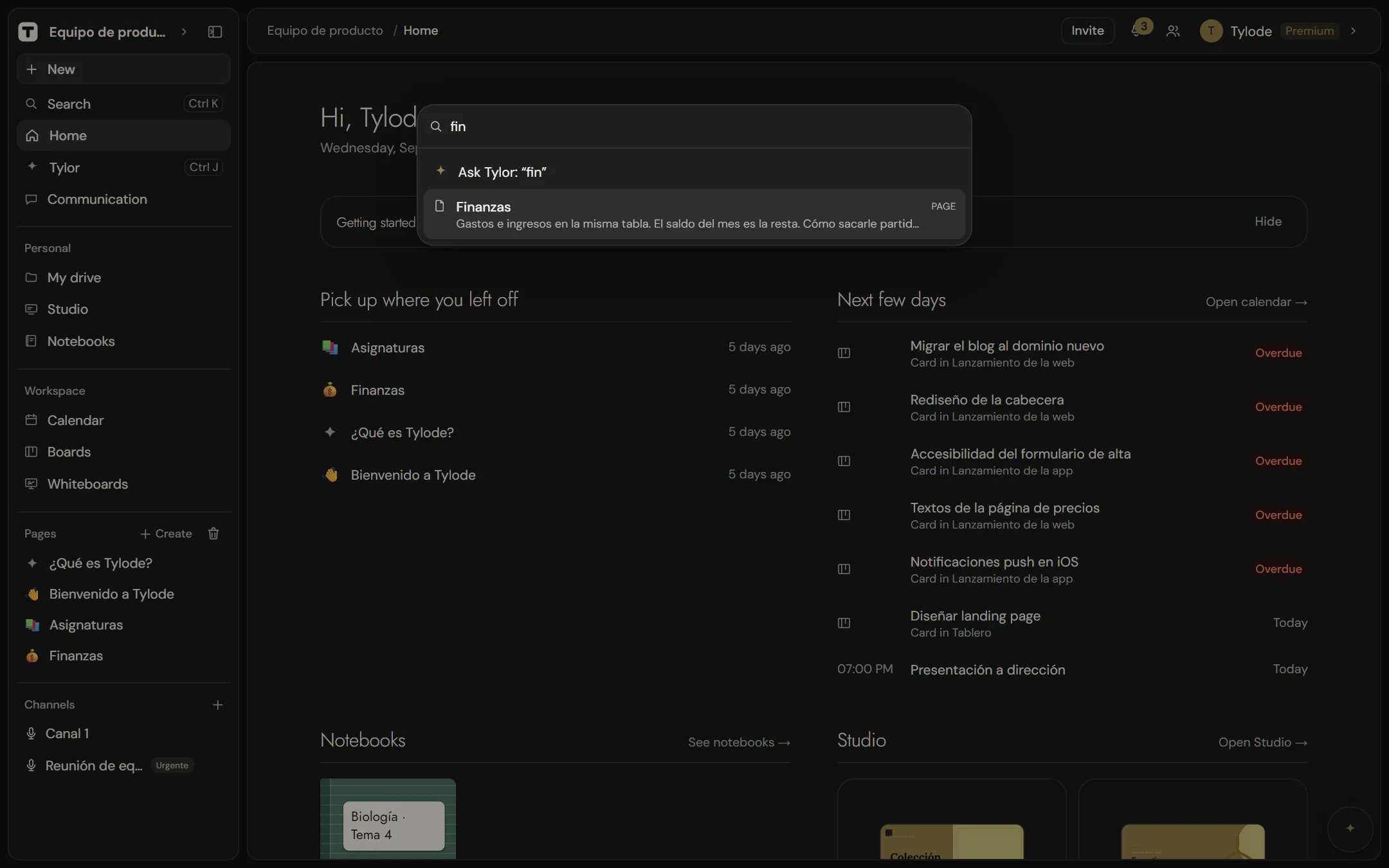
Open search
- Press Ctrl+K (Cmd+K on Mac) anywhere in the app. Press it again to close search.
- Or click Search at the top of the sidebar.
- On a phone, tap the Search or ask Tylor field at the top of Home and Workspace. As well as the results, it offers Ask Tylor: “…”, which opens Tylor with what you typed.
Type at least two letters. Results appear as you type.
Move through results with the keyboard
| Key | Action |
|---|---|
| ↓ / ↑ | Move to the next or previous result. |
| Enter | Open the highlighted result. |
| Esc | Close search. |
You can also click any result.
What search looks in
Search covers the current workspace, plus your own Studio presentations. Each result is labelled with its type.
| Type | What's matched | Where it takes you |
|---|---|---|
| Page | The page title and all the text in the page, including its magnets if it's a dashboard page. | The page. |
| Board | The board name. | The board. |
| Whiteboard | The whiteboard name. | The whiteboard. |
| Presentation | The name of Studio designs you own or that are shared with you. | The design in Studio. |
| The subject of mail threads. | The thread in your mail. | |
| Chat | The text of chat messages. | The conversation that contains the message. |
You only get results you already have access to: pages restricted to other people, or conversations you're not part of, never appear.
Search shows up to 20 results, best matches first.
Snippets
Page results show a snippet with the beginning of the page's text, and chat results show the message itself, so you can tell similar results apart before opening them.
What search doesn't find
Search doesn't look inside:
- Database rows (the rows of tables embedded in pages), or the text of a row opened as a page.
- Comments on pages.
- Cards on boards, or the contents of whiteboards and Studio designs.
- Files in My drive or calendar events.
To find a database row, search for the page that holds the database and use the view's filters. To find a card, search for its board. Files in My drive have their own search box, Search My drive…. See Views, filters and sorting and My drive.
Search tips
- Titles match partially. Typing
roadmfinds a page called "Product roadmap". - Page text and messages match whole words. Type complete words to search inside pages and chats.
- Search for a phrase by wrapping it in double quotes, for example
"release notes". Start a word with a minus sign, like-draft, to leave out pages or messages that contain it. - Nothing found in this workspace? Search only covers the workspace you're in. Switch workspace from the top of the sidebar and search again.