
Modules
My drive
My drive is your personal file storage in Tylode. As the app puts it: "Your files, the same across every workspace. Only you can see them." It's also where your Studio designs live.
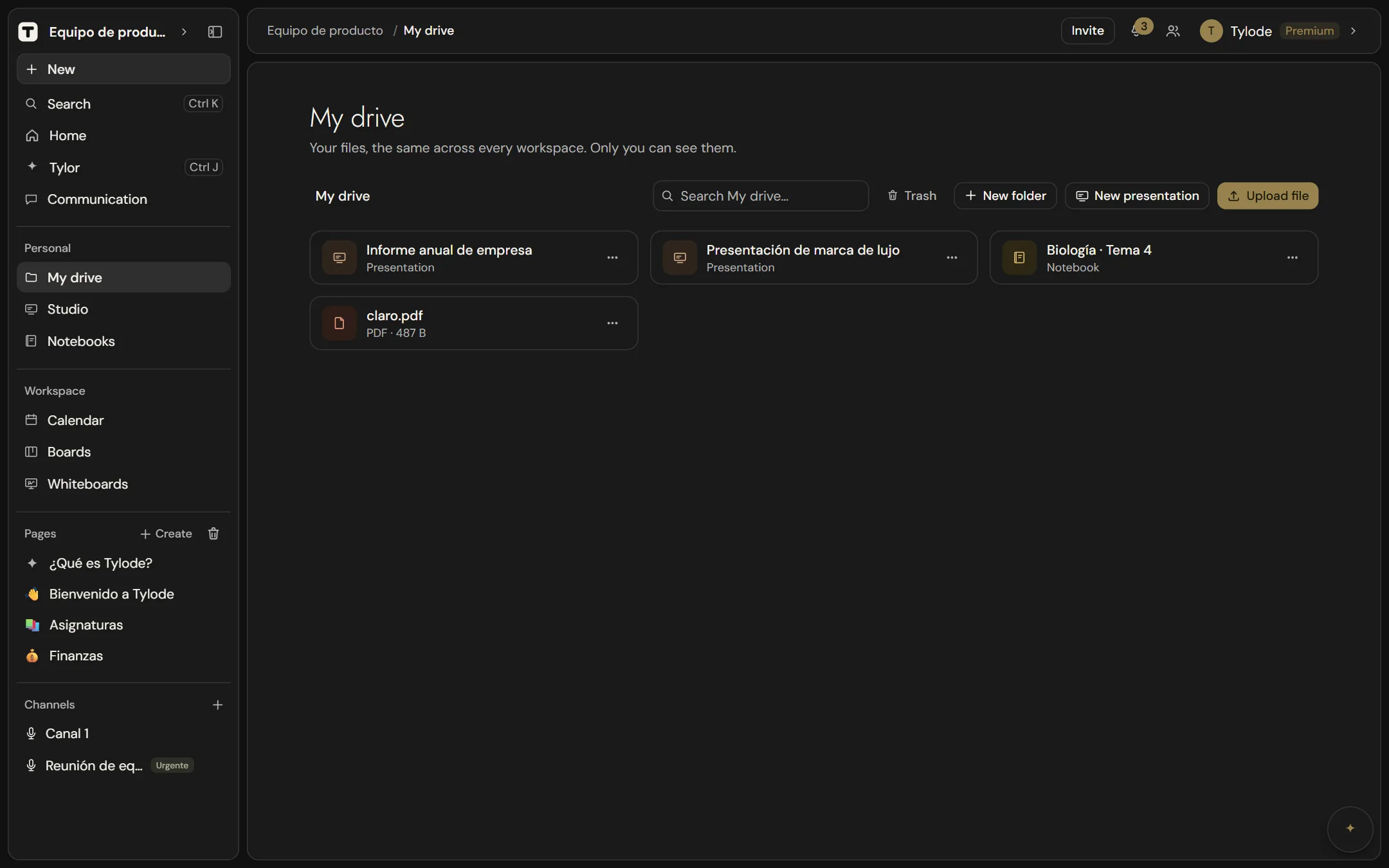
How My drive works
- It's yours, not the workspace's. Open My drive in the Personal group of the sidebar. You see the same folders and files whichever workspace you're in.
- Only you see it. Nobody in your workspaces can browse your drive. To give someone a file, share a temporary link; to share a Studio design or a notebook, use its Share button.
- Storage comes from the workspace you upload from. My drive has no separate quota: each upload counts toward the storage of the workspace you're in at that moment (see Storage and file size limits).
What you see in My drive
Folders, presentations and files are listed as rows. Each one has an icon colored by type, so you can tell them apart without reading:
| Item | Icon color |
|---|---|
| Folder | Ochre |
| Presentation | Clay |
| Terracotta | |
| Audio and video | Plum |
| Spreadsheets (Excel, CSV, OpenDocument) | Olive |
| Archives (ZIP, RAR, 7Z…) | Stone |
| Any other file | Slate |
Images show a thumbnail instead of an icon. Under each file's name you'll see its extension and size, for example "PDF · 437 B"; presentations say Presentation.
Click a folder or presentation to open it, and a file to view it. Everything else is in the ⋯ menu on each row:
| Item | Options in ⋯ |
|---|---|
| Folder | Rename, Delete folder |
| Presentation | Rename, Move to trash |
| File | Share, Move to trash |
Move to trash acts straight away, without asking, because you can restore the item from the trash. Delete folder asks you to confirm first, since the folder goes with everything inside it.
Folders
- New folder creates a folder called "Folder" in the current location.
- To rename a folder, choose ⋯ → Rename, type the new name and press Enter or click outside to save; Esc cancels.
- Click a folder to open it. The path at the top (starting with My drive) shows where you are; click any part of it to go back up.
- ⋯ → Delete folder warns you that the folder will be deleted with everything inside it and, if you confirm, moves it to the trash, where you can restore it.
Upload files
- Go to the folder where you want the files.
- Click Upload file and choose one or more files, or Upload folder to upload a whole folder.
You can also drag files or whole folders from your computer: drop them on an empty spot to upload them to the folder you're viewing, or on a folder to upload them into it. Folders are uploaded with everything inside, subfolders included.
Before anything starts, everything is checked together:
- Anything that can't be uploaded (a type that isn't allowed or a file over 5 GB) is skipped, and you're told.
- If the total doesn't fit in the storage you have left, nothing is uploaded.
- If there are new folders, more than 20 files or anything skipped, you're asked to confirm with a summary.
While it uploads you see how many files are done and how much they take up; Stop stops starting new files. System files (like .DS_Store or Thumbs.db) and hidden folders (like .git) aren't uploaded. Large files are uploaded in chunks: if the connection drops for a moment, it picks up where it left off.
Open and download files
Click a file to open it. Images, PDFs, videos, audio and text files open in a viewer without leaving My drive; other types (a .zip, a .docx…) open in a new browser tab. In the viewer, click the Download icon to save the file to your device, or Close to go back.
Move files and folders
Drag a file, folder or Studio design onto a folder to move it there, or onto a part of the path at the top (for example My drive) to move it up. You can't move a folder into itself.
Search My drive
Type in Search My drive… to find folders and files by name, in any folder.
Share a file with a temporary link
You can send anyone a file from My drive, even people without a Tylode account.
- Click ⋯ on the file and choose Share.
- Choose how long the link lasts: 1 hour, 24 hours (the default) or 7 days.
- Click Generate link, then Copy.
Anyone with the link can open the file, without a Tylode account, until it expires. After that the link stops working; generate a new one if needed. Links are for single files; folders can't be shared this way.
Shared with me
At the top level of My drive, Shared with me lists the Studio designs and notebooks other people have shared with you: "From other people. They don't take up space in your folders." Each one shows who shared it and whether you can edit or have view only access. Click one to open it.
Studio documents
Every Studio design is stored in My drive and appears next to your files, marked Presentation.
- New presentation creates a 16:9 presentation called "Untitled design" in the current folder and opens it in Studio. For other formats and templates, start from Studio.
- Click a design to open it in Studio. To rename it, choose ⋯ → Rename. Drag designs into folders to organize them.
- ⋯ → Move to trash deletes a design straight away; you can restore it from the trash.
Trash
Click Trash to see what you've deleted from My drive: folders, files and presentations.
- Restore puts an item back.
- Delete forever removes it permanently (click twice to confirm). This can't be undone.
- ← Back to My drive returns to your files.
Items stay in the My drive trash until you restore them or delete them forever; they aren't removed automatically. Files in the trash still take up storage until you delete them forever.
Allowed and blocked file types
| Kind | Allowed formats |
|---|---|
| Images | PNG, JPEG, GIF, WebP, AVIF, HEIC/HEIF, BMP, TIFF |
| Audio | MP3, M4A, WAV, OGG, WebM, AAC, FLAC |
| Video | MP4, WebM, MOV, OGG |
| Documents | PDF, TXT, CSV, Markdown, JSON, RTF, Word, Excel, PowerPoint, OpenDocument (text, spreadsheet, presentation), EPUB |
| Archives | ZIP, 7Z, RAR, GZ, TAR |
| Fonts | TTF, OTF, WOFF, WOFF2 |
| Design | PSD, AI, EPS, and other design formats your browser doesn't recognize (for example .fig or .sketch) |
| Other | Calendar files (.ics), email files (.eml) |
| Blocked | HTML, SVG, JavaScript and executable files (for example .exe) |
Blocked types are refused for security reasons, because they could run code when opened.
Storage and file size limits
| Free | Pro | Premium | |
|---|---|---|---|
| Maximum size per file | 5 GB | 5 GB | 5 GB |
| Storage per workspace | 1 GB | 15 GB | 250 GB |
- Both limits come from the plan of the workspace you're in when you upload, and the file counts toward that workspace's storage. If you're in several workspaces, switch to the one with more room before uploading large files.
- The workspace's storage is shared by everything uploaded in it: My drive uploads, files in pages, boards, whiteboards and chats.
- In a frozen workspace you can't upload or delete files from My drive.
My drive vs files in pages and boards
Files can also live inside your work, not only in My drive:
| My drive | Files in a page | Files on a board card | |
|---|---|---|---|
| How you add them | Upload file in My drive | Image, Video, Audio or File blocks in the editor | Image, Audio or Document custom fields |
| Who can see them | Only you (plus anyone you send a temporary link) | Anyone who can see the page | Anyone who can see the board |
| Belong to | You, in every workspace | The page and its workspace | The board and its workspace |
| Max size | 5 GB per file | 10 MB per file | 5 GB per file |
| Counts toward | The workspace you upload from | The page's workspace | The board's workspace |
Use My drive for your own files and anything you want to keep private. Use page and card files when the file is part of the shared work. Files added to a page can be opened by anyone who has the file's direct link, so don't put sensitive files in pages; keep them in My drive and share them with an expiring link instead. See Blocks and Boards.